Arcade is a fantastic expression language that gives you more customisation options in your ArcGIS System. But if you have wondered how to get started with writing your own expressions, or how you can format them better, you’re definitely not alone.
To learn how to write Arcade code, you will need to understand its syntax, or the formatting rules your ArcGIS System needs to understand what we want it to do. Understanding syntax will help you write your own scripts, adapt other people’s and stick to best practices. This blog covers the tips and insights I wish I’d known as I was getting started with learning Arcade not too long ago. With a little syntax demystification, you will also be able to get stuck in with your own expressions in no time!
Keep in mind that Arcade has varying capability depending on the profile you’re working in (for example, ArcGIS Pro and ArcGIS Dashboards will give you access to some different functions) but if you want to revise any of other beginning concepts needed for Arcade, then definitely check out the following resources:
- Our handy introduction blog Arcade unscripted: thoughts from a newbie.
- Our Arcade in ArcGIS: Expressions for Everyone webinar for a more in-depth look.
Our worked example
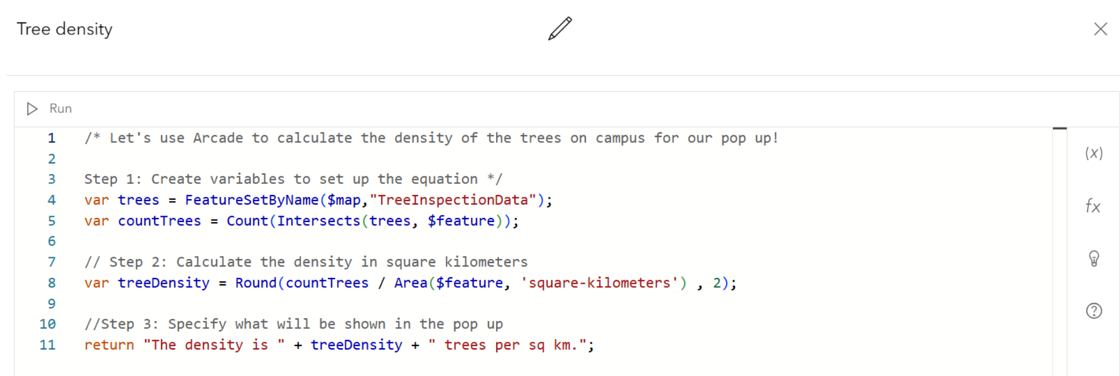
For the remainder of the blog, we’ll be stepping through the different basic components that make up Arcade syntax, using the example script below. I’ve written this expression for a pop up in the ArcGIS Online Map Viewer on a ‘campus areas’ polygon layer. It uses this data in combination with data from another ‘tree inspection’ point layer to calculate tree density information in the polygons for our pop up:
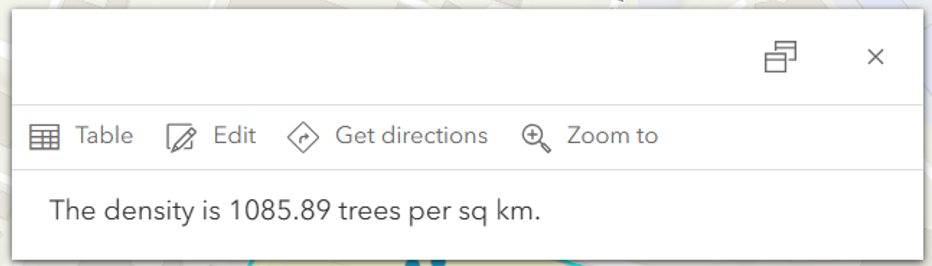
With the expression applied here’s what our pop up looks like:
Without further ado, let’s explore the building blocks that make up this expression, shall we?
Arcade Syntax dictionary
Comments
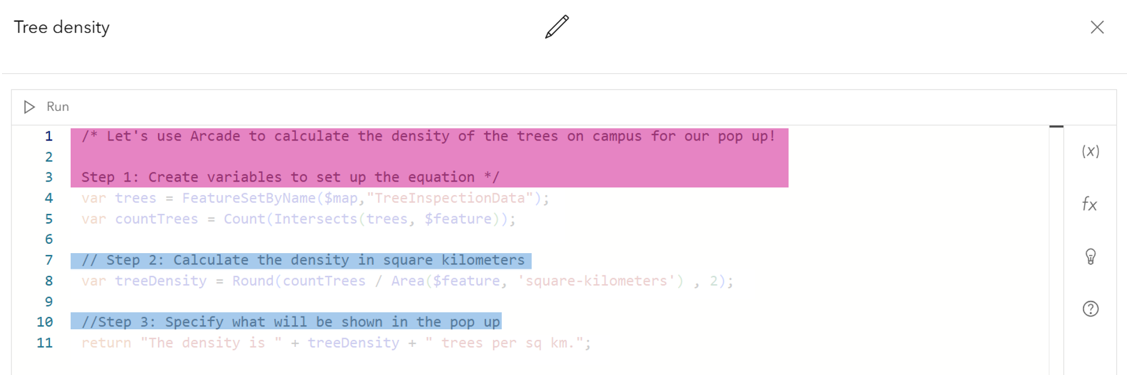
Comments are helpful notes you add throughout your code to help others (or your future self) make sense of it. Anything marked as a comment will not be recognised as live code by the computer.
You can make single line comments by starting them with two forward slashes:

Or make multi line comments by marking the start and end of them with a forward slash and an asterisk:

See how I’ve used both types of comments in the example expression below:
Find out more about comments in the Arcade documentation.
Expressions
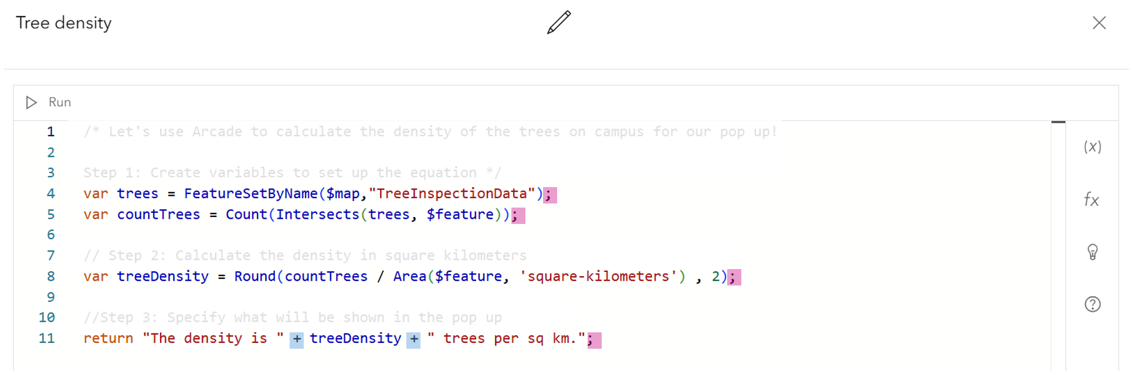
While you’re writing your expressions, keep in mind that semi colons tell the computer how to group the parts of your expressions that will be run together. Use them after returns or after you create new variables. If your code isn’t running, they are quite likely to be the culprit!

There are also several ways to join parts of an expression together. One way is using addition (plus) signs to concatenate them:

In my example expression semi colons have been used to end expression parts, and addition signs were used to create the return sentence:
Variables
If you want to reuse code to use later in your expression, you can put it in a variable. Use these to store single values, multiple values or the result of expressions. You define variables by writing “var”, your variable name, an equals sign, and then the values you want to store:

Your variables are not case sensitive but its good practice to use camel case to make your code easier to read.
The example expression starts with defining two variables: one for accessing the tree inspection point data; and one for counting these trees in the campus areas:
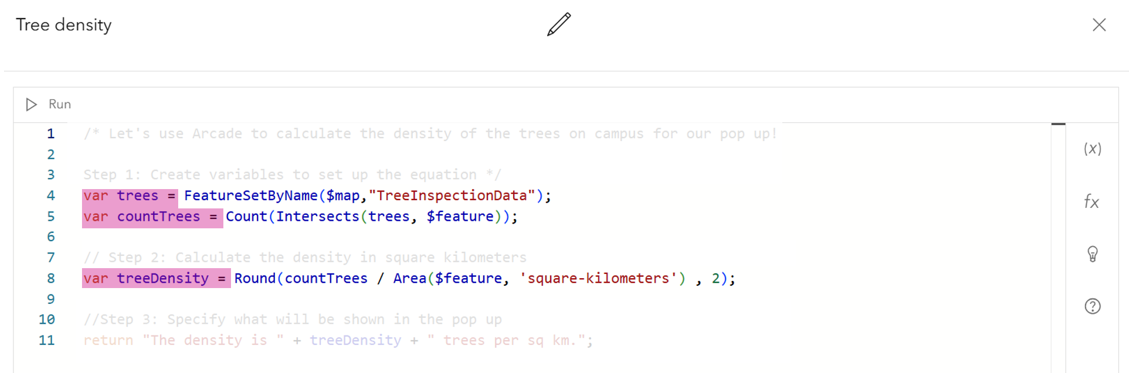
Later in the expression, I use another variable to calculate tree density so it can be used in the return sentence. Within the variables I’ve used functions, which I’ll talk about next.
Find out more about variables in the Arcade documentation.
Functions
Functions are prewritten blocks of code that instruct the computer to perform specific actions. Many functions are available to format text, geometry, data or more, but which functions you can use depends on the Arcade profile you’re working within.
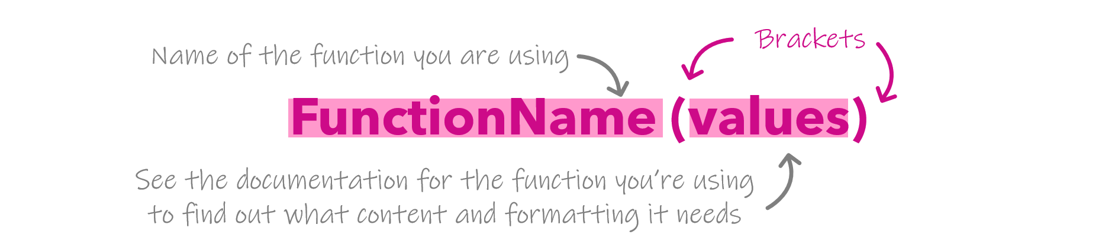
You use functions by writing the function name (all words capitalised) and then use brackets to put function values inside. See the documentation page for each function to find the formatting rules needed inside the brackets:
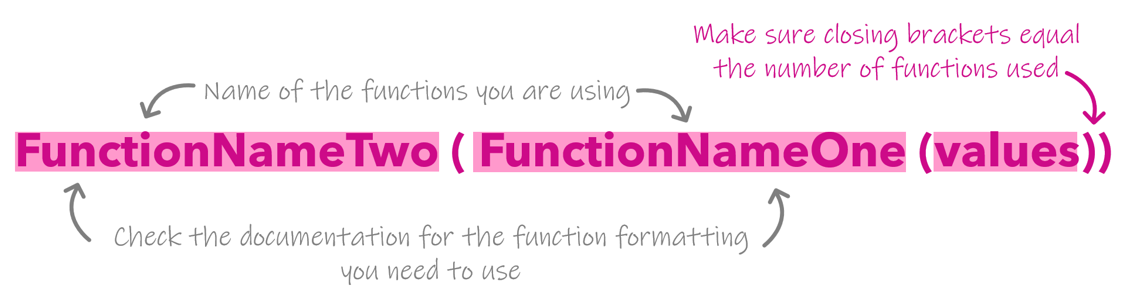
If you use multiple functions together, order them from the inside out and make sure that the number of closing brackets at the end is equal to your opening bracket number:
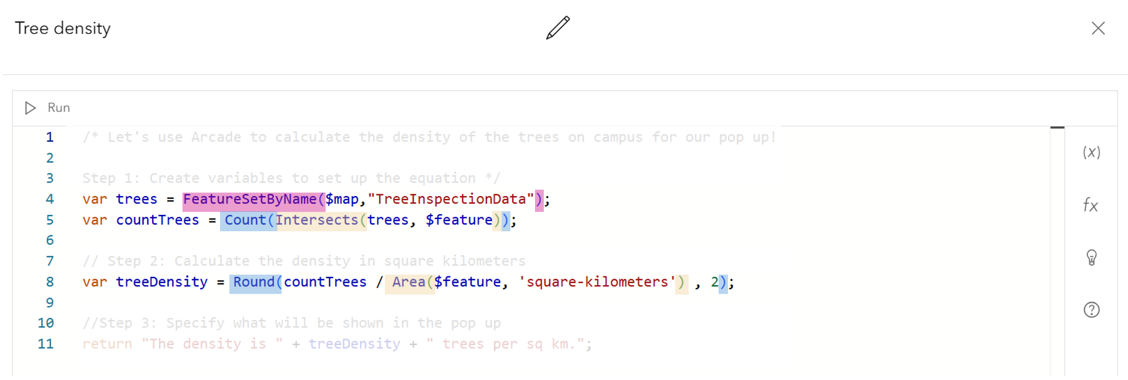
In the example I’ve first used a FeatureSetByName function to access our tree data.
On line 5 I’ve used two functions: the Intersects function to find the trees that intersect with the campus areas, and the Count function to count these trees, in that order.
On line 8 I’ve used two functions again: the Area function to get the area of the campus, then the Round function to round this number to two decimal places.
Find out more about functions in the Arcade documentation.
Accessing your own data (profile variables)
To use data from a field in our map data in the expression, I’ve used a profile variable, which are prefaced with a dollar sign. A common example is if you put “$feature.” then a field name for your data layer you can access the data within it:

Or you could use a FeatureSet function such as FeatureSetByName. This function includes the profile variable “$map” in its formatting to access your map layers:
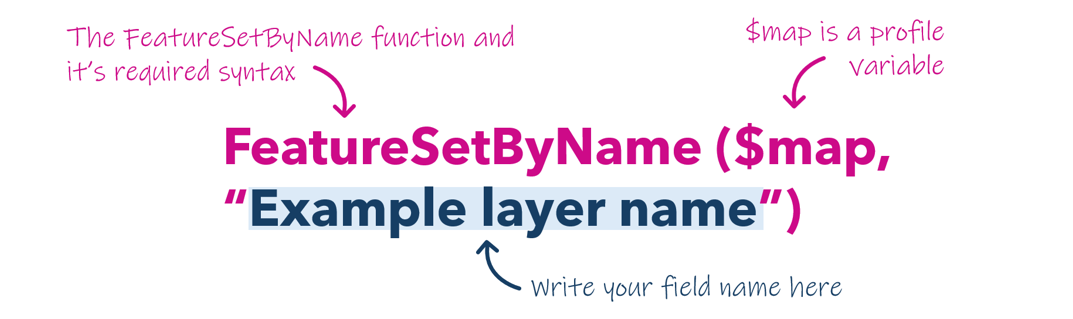
I’ve used profile variables in our script to retrieve my map layer ‘TreeInspectionData’, and also specific features:
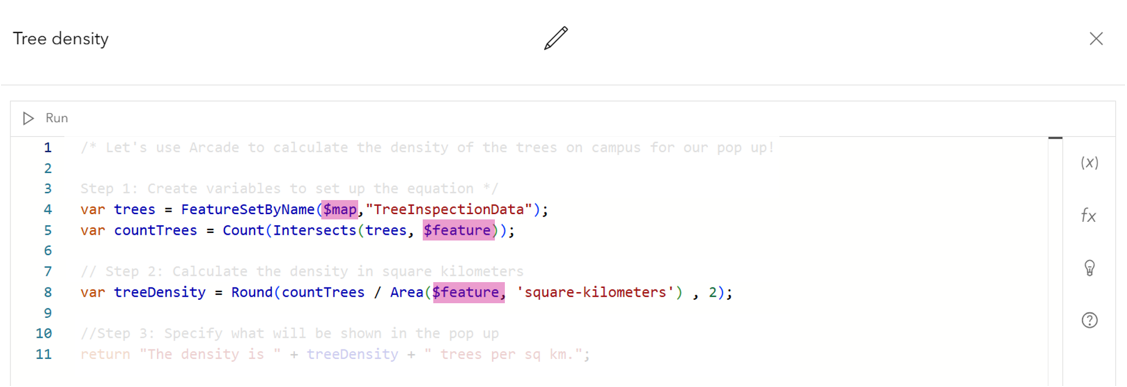
Find out more about profile variables in the Arcade documentation.
Text
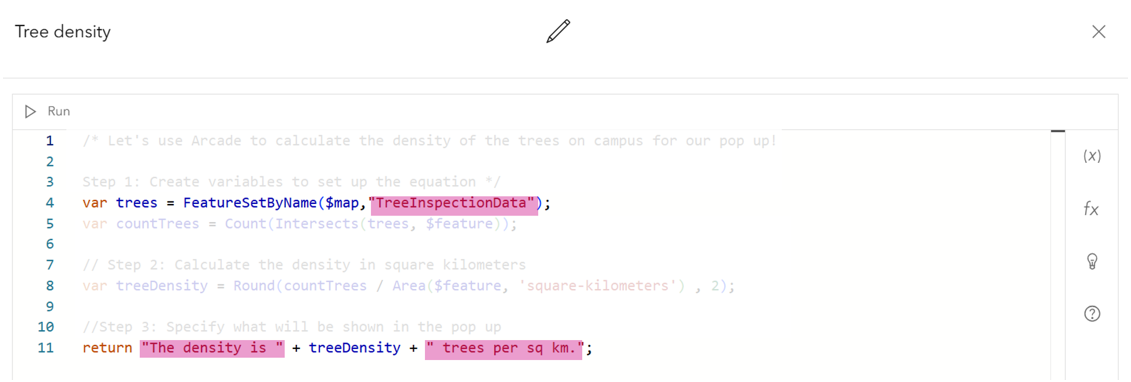
Mark text or strings in your expressions with double quotations. Make sure to include punctuation so that your text will read nicely:

In our example I’ve used text to specify the map layer we want in a function, and the text in the return statement:
Hungry for more?
You can find further information about formatting Arcade expressions in the Sweet for ArcGIS Scripting style guide. If you’re experimenting with writing Arcade expressions then the ArcGIS Arcade Playground is a good place to start (just make sure to save a copy of your code elsewhere!).
If you want some inspiration about how you can use Arcade across the ArcGIS System then check out the powering up your field mapping with ArcGIS Arcade session at our 2024 Annual Conference, or our quick how to add data to ArcGIS Experience Builder with Arcade video.